


Gehtsoft USA, LLC
5100 Western Blvd, Raleigh, NC 27606
Phone: 201-820-1281
Email: contact@gehtsoftusa.com
5100 Western Blvd, Raleigh, NC 27606
Phone: 201-820-1281
Email: contact@gehtsoftusa.com
COPYRIGHT© 2026 GEHTSOFT USA, LLCPRIVACY POLICY


The Trade Confirmation project is an example of generation of a Trade Confirmation document. The example demonstrates how to create a document based on several tables built with using colSpan and rowSpan parameters. The example also demonstrates how to place data from several data sources in table cells.
The example source is available in repo.

Visual Studio 2017 or later is installed. To install a community version of Visual Studio, use the following link: https://visualstudio.microsoft.com/vs/community/.
Please make sure that the way you are going to use Visual Studio is allowed by the community license. You may need to buy Standard or Professional Edition.
.NET Core SDK 2.1 or later is installed. To install the framework, use the following link: https://dotnet.microsoft.com/download.
Table data
The values for the trade details and customer data fields are located in the Content/trade-data.json file:
{
    "customername": "Jane Doe",
    "customeraddress": [
        "123 Retail Customer Street",
        "Portland, ME 12345"
    ],
    "account": "# 123456789",
    "bought": "15,000",
    "price": "100.000",
    "principalamount": "$15,000.00",
    "accruedinterest": "$70.42",
    "transactionfee": "$4.95",
    "total": "$15,075,37",
    "bankqualified": "No",
    "state": "ME",
    "bankqualified2": "No",
    "dateddate": "04/01/1996",
    "yieldtomaturity": "3.25",
    "yieldtocall": "3.25",
    "taxexempt": "Yes",
    "capacity": "Principal",
    "bondform": "Book Entry",
    "tradedate": "05/21/2021",
    "tradetime": "2:55 PM",
    "settlementdate": "05/23/2021",
    "order": "000000001"
}
The data for the document including information about the firm and trade terms are located in the Content/firm-data.json file:
{
    "documentdate": "May 21, 2021",
    "firmcontact": [
        "Financial Firm ABC",
        "123 Main Street",
        "Portland, ME 12345",
        "(123) 456-7890"
    ],
    "taxinfo": "CUSIP 99999999 SCHOOL DISTRICT BOND Unlimited Tax General Obligation 3.25% Due 04/01/36",
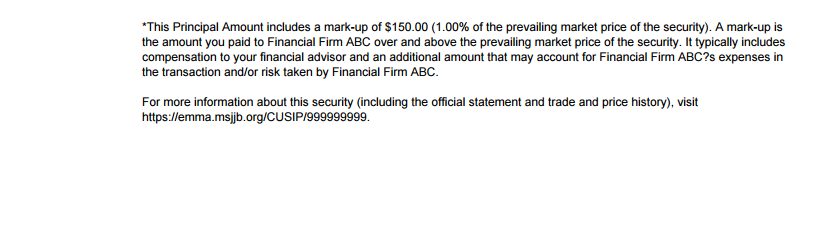
    "expensesinfo": "*This Principal Amount includes a mark-up of $150.00 (1.00% of the prevailing market price of the security). A mark-up is the amount you paid to Financial Firm ABC over and above the prevailing market price of the security. It typically includes compensation to your financial advisor and an additional amount that may account for Financial Firm ABC’s expenses in the transaction and/or risk taken by Financial Firm ABC.",
    "moreinfo": "For more information about this security (including the official statement and trade and price history), visit https://emma.msjjb.org/CUSIP/999999999.",
}
The image is located in the images/TC_Image.png file.
The example creates the Trade Confirmation.pdf file in the output bin/(Debug|Release)/netcoreapp2.1 folder.
1. Create a new console application.
1.1. Run Visual Studio.
1.2. Select File > Create > Console Application (.Net Core).
2. Modify the class Program.
2.1. Set the path to the output PDF file in the Main() function:
Parameters parameters = new Parameters(null, "Trade Confirmation.pdf")
2.2. To generate the Trade Confirmation document and to build it into the output file, call the Run() and Build() methods:
TradeConfirmation.Run().Build(parameters.file);
2.3. After the generation and building is completed, notify the user about it:
Console.WriteLine("\"" + Path.GetFullPath(parameters.file)
                        + "\" document has been successfully built");
3. Create models to process json files.
3.1. Create a file Model/FirmData.json to read all items from the Content/firm-data.json file:
using System.Collections.Generic;

namespace TradeConfirmationData.Model
{
    public class FirmData
    {
        public string DocumentDate { get; set; }
        public List<string> FirmContact { get; set; }
        public string TaxInfo { get; set; }
        public string ExpensesInfo { get; set; }
        public string MoreInfo { get; set; }

        public override string ToString()
        {
            return "{" + ", taxinfo=" + TaxInfo +
                    ", expensesinfo=" + ExpensesInfo +
                    ", moreinfo=" + MoreInfo +
                    ", firmcontact: [" + FirmContact.ToString() + "]" +
                     "}";
        }
    }
}
3.2. Create a file Model/TradeData.json to read all items from the Content/trade-data.json file:
using System.Collections.Generic;
namespace TradeConfirmationData.Model
{
    public class TradeData
    {
        public string CustomerName { get; set; }
        public List<string> CustomerAddress { get; set; }
        public string Account { get; set; }
        public string Bought { get; set; }
        public string Price { get; set; }
        public string PrincipalAmount { get; set; }
        public string AccruedInterest { get; set; }
        public string TransactionFee { get; set; }
        public string Total { get; set; }
        public string BankQualified { get; set; }
        public string State { get; set; }
        public string BankQuaified2 { get; set; }
        public string DatedDate { get; set; }
        public string YieldtoMaturity { get; set; }
        public string YieldtoCall { get; set; }
        public string TaxExempt { get; set; }
        public string Capacity { get; set; }
        public string BondForm { get; set; }
        public string TradeDate { get; set; }
        public string TradeTime { get; set; }
        public string SettlementDate { get; set; }
        public string Order { get; set; }

        public override string ToString()
        {
            return "TradeData{" +
                    "CustomerName=" + CustomerName +
                    ", CustomerAddress: [" + CustomerAddress.ToString() + "]" +
                    ", Account=" + Account +
                    ", Bought=" + Bought +
                    ", Price=" + Price +
                    ", PrincipalAmount=" + PrincipalAmount +
                    ", AccruedInterest=" + AccruedInterest +
                    ", TransactionFee=" + TransactionFee +
                    ", Total=" + Total +
                    "BankQualified=" + BankQualified +
                    ", State=" + State +
                    ", BankQuaified2=" + BankQuaified2 +
                    ", DatedDate=" + DatedDate +
                    ", YieldtoMaturity=" + YieldtoMaturity +
                    ", YieldtoCall=" + YieldtoCall +
                    ", TaxExempt=" + TaxExempt +
                    "Capacity=" + Capacity +
                    ", BondForm=" + BondForm +
                    ", TradeDate=" + TradeDate +
                    ", TradeTime=" + TradeTime +
                    ", SettlementDate=" + SettlementDate +
                    ", Order=" + Order +
                     "}";
        }
    }
}
4. Create a class for running the document generation.
4.1. Create a TradeConfirmationRunner class:
public static class TradeConfirmationRunner
{
}
4.2. Add the CheckFile method to the TradeConfirmationRunner class:
    private static string CheckFile(string file)
    {
        if (!File.Exists(file))
        {
            throw new IOException("File not found: " + Path.GetFullPath(file));
        }
        return file;
    }
This method is responsible for checking if the file exists. If not, an instance of IOException is thrown.
4.3. Add the Run method to the TradeConfirmationRunner class:
public static DocumentBuilder Run()
    {
        // The method flow is described below
    }
4.3.1. First, we read the JSON data from the files:
string firmJsonFile = CheckFile(Path.Combine("Content", "firm-data.json"));
string firmJsonContent = File.ReadAllText(firmJsonFile);
FirmData firmData =
    JsonConvert.DeserializeObject<FirmData>(firmJsonContent);

string tradeJsonFile = CheckFile(Path.Combine("Content", "trade-data.json"));
string tradeJsonContent = File.ReadAllText(tradeJsonFile);

TradeData tradeData =
    JsonConvert.DeserializeObject<TradeData>(tradeJsonContent);
4.3.2. Then, we create an instance of the TradeConfirmationBuilder class and pass the data to it:
TradeConfirmationBuilder TradeConfirmationBuilder =
    new TradeConfirmationBuilder();

TradeConfirmationBuilder.FirmData = firmData;
TradeConfirmationBuilder.TradeData = tradeData;
4.3.3 Finally, we return the instance of the TradeConfirmationBuilder class so that we can save the document later:
return TradeConfirmationBuilder.Build();
5. Build the document structure in the TradeConfirmationBuilder class.
5.1. Define the culture info, page orientation, and margins variables:
        internal static readonly CultureInfo DocumentLocale
            = new CultureInfo("en-US");
        internal static readonly XUnit PageWidth =
            (PredefinedSizeBuilder.ToSize(PaperSize.Letter).Width -
                (Margins.Left + Margins.Right));
        internal const PageOrientation Orientation
            = PageOrientation.Portrait;
        internal static readonly Box Margins = new Box(30, 27, 30, 27);
5.2. Define the font variables:
        internal static readonly FontBuilder FNT9 = Fonts.Helvetica(9f);
        internal static readonly FontBuilder FNT9B = Fonts.Helvetica(9f).SetBold();
        internal static readonly FontBuilder FNT10 = Fonts.Helvetica(10f);
        internal static readonly FontBuilder FNT11B = Fonts.Helvetica(11f).SetBold();
        internal static readonly FontBuilder FNT24B = Fonts.Helvetica(24f).SetBold();
5.3. Define the data properties:
        public FirmData FirmData { get; internal set; }
        public TradeData TradeData { get; internal set; }
5.4. Build the document into an instance of the TradeConfirmationBuilder class:
        internal DocumentBuilder Build()
        {
            DocumentBuilder documentBuilder = DocumentBuilder.New();
            var Section = documentBuilder.AddSection();
            Section.SetOrientation(PageOrientation.Portrait);

            return documentBuilder;
        }
Here we create an instance of the DocumentBuilder class, add a section to it, set the section margins and page orientation, and fill it with the content.
5.5. To fill the header bar, we create a header table:
        public void AddTradeHeader(SectionBuilder section)
        {
            var headerTable = section.AddTable()
                .SetContentRowStyleBorder(borderBuilder =>
                   borderBuilder.SetStroke(Stroke.None));

            headerTable
                .SetWidth(XUnit.FromPercent(100))
                .AddColumnPercentToTable("", 50)
                .AddColumnPercentToTable("", 50);

            var row1Builder = headerTable.AddRow();
            var row2Builder = headerTable.AddRow();
            var row3Builder = headerTable.AddRow();
            var row4Builder = headerTable.AddRow();
            var row5Builder = headerTable.AddRow();
            var row6Builder = headerTable.AddRow();
Here we add two columns to the table, 50% and 50% in width. Then we add six rows that will make our header.
5.6. In the first three rows, we fill the cells with the information about the firm and set colSpan = 2 because the cell spans two columns. We also set the proper horizontal alignment.
            var row1Builder = headerTable.AddRow();
            row1Builder.AddCell("Financial Firm ABC®", 2, 0).SetFont(FNT24B);

            var row2Builder = headerTable.AddRow();
            row2Builder.AddCell(FirmData.DocumentDate, 2, 0).SetFont(FNT9)
                .SetHorizontalAlignment(HorizontalAlignment.Right);

            var row3Builder = headerTable.AddRow();
            AddAccount(row3Builder.AddCell("", 2, 0).SetFont(FNT9)
                .SetHorizontalAlignment(HorizontalAlignment.Right)
                .SetPadding(0, 0, 0, 10)
                .SetBorderStroke(Stroke.None));

            var row4Builder = headerTable.AddRow();

            var row5Builder = headerTable.AddRow();
            AddAccount(row5Builder.AddCell("", 2, 0).SetFont(FNT9).SetBold(true)
                .SetHorizontalAlignment(HorizontalAlignment.Left)
                .SetBorderStroke(Stroke.None));
5.7. To fill the account cell, we add the addAccount method. Here we create a string which consists of two elements - text and data.
        void addAccount(TableCellBuilder cellBuilder)
        {
            cellBuilder.AddParagraph("Trade Confirmation - Account ")
                .AddTabSymbol().AddText(TradeData.Account);
        }
5.8. To complete the fourth row, we fill both cells.
            var row4Builder = headerTable.AddRow();
            AddCustomer(row4Builder.AddCell("").SetFont(FNT9));
            AddFirm(row4Builder.AddCell("").SetFont(FNT9)
                .SetHorizontalAlignment(HorizontalAlignment.Right));
5.9. As we represented our data as a list object, we use a loop to fill data blocks to write each item to a new string.
        private void AddCustomer(TableCellBuilder cellBuilder)
        {
            cellBuilder.AddParagraph(TradeData.CustomerName);
            foreach (var item in TradeData.CustomerAddress)
            {
                cellBuilder.AddParagraph(item);
            }
        }

        private void AddFirm(TableCellBuilder cellBuilder)
        {
            foreach (var item in FirmData.FirmContact)
            {
                cellBuilder.AddParagraph(item);
            }
        }
5.10. To finish the table, we add it to the section, and then we add a line:
            AddTradeHeader(Section);
            Section
                .AddLine()
                .SetWidth(2)
                .SetStroke(Stroke.Solid)
                .SetMargins(0, 10, 0, 14)
                .SetAlignment(HorizontalAlignment.Left).ToSection();
We have finished the header table. This is how our table looks:

5.11. Now it is time to create a body table which consist of many rows containing data from trade-data.json. We set the column width of 15%, 45%, 3% (an empty one), and 37% respectively.
        public void AddTradeBody(SectionBuilder section)
        {
            var bodyTable = section.AddTable()
                .SetContentRowStyleBorder(borderBuilder =>
                borderBuilder.SetStroke(Stroke.None));

            bodyTable
                .SetWidth(XUnit.FromPercent(100))
                .AddColumnPercentToTable("", 15)
               .AddColumnPercentToTable("", 45)
                .AddColumnPercentToTable("", 3)
                .AddColumnPercentToTable("", 37);

             var row7Builder = bodyTable.AddRow();
             var row8Builder = bodyTable.AddRow();
             var row9Builder = bodyTable.AddRow();
             var row10Builder = bodyTable.AddRow();
             var row11Builder = bodyTable.AddRow();
             var row12Builder = bodyTable.AddRow();
             var row13Builder = bodyTable.AddRow();
             var row14Builder = bodyTable.AddRow();
             var row15Builder = bodyTable.AddRow();
             var row16Builder = bodyTable.AddRow();
             var row17Builder = bodyTable.AddRow();
             var row18Builder = bodyTable.AddRow();
             var row19Builder = bodyTable.AddRow();
             var row20Builder = bodyTable.AddRow();
             var row21Builder = bodyTable.AddRow();
             var row22Builder = bodyTable.AddRow();
5.12. The seventh row consists of a cell with an image from the file images/TC_Image.png and a cell with colSpan = 3 containing text.
            var row7Builder = bodyTable.AddRow();
            row7Builder.AddCell()
                .AddImage(Path.Combine("images", "TC_Image.png"), 100, 100);
            BodyInfo(row7Builder.AddCell("", 3, 0));
5.13. To fill the second cell with data from trade-data.json, we use the AddParagraph() and AddText() methods, we also call AddTabulation() to align the text.
        void BodyInfo(TableCellBuilder cellBuilder)
        {
            cellBuilder.AddParagraph(FirmData.TaxInfo).SetMarginBottom(13).SetFont(FNT9);
            cellBuilder.AddParagraph("You bought:").SetFont(FNT9).AddTabSymbol()
                .AddTabulation(300,TabulationType.Right).AddText("Price:").SetFont(FNT9);
            cellBuilder.AddParagraph(TradeData.Bought).SetFont(FNT9B).AddTabSymbol()
                .AddTabulation(300, TabulationType.Right).AddText(TradeData.Price).SetFont(FNT9B);
        }
5.14. In the eighth row, we have two cells - one with the text "Trade", the other with the order number and rowSpan = 3
            var row8Builder = bodyTable.AddRow();
            row8Builder.AddCell("Trade").SetFont(FNT9)
                .SetHorizontalAlignment(HorizontalAlignment.Center);
            row8Builder.AddCell("", 3, 0)
                .AddParagraph("Order number: ").SetFont(FNT9).AddText(TradeData.Order).SetFont(FNT9);
5.15. The next row contains only a cell with rowSpan = 3 with the "Trade Calculation" text, here we also highlight the bottom border to create a line:
            var row9Builder = bodyTable.AddRow();
            row9Builder.AddCell();
            row9Builder.AddCell("Trade Calculation", 3, 0).SetFont(FNT11B)
                .SetBorderWidth(2)
                .SetBorderStroke(strokeLeft: Stroke.None, strokeTop: Stroke.None,
                    strokeRight: Stroke.None, strokeBottom: Stroke.Solid);
5.16. Then we fill the table with many data elements:
            var row10Builder = bodyTable.AddRow();
            row10Builder.AddCell();
            FillLeftBlock(a: "Principal Amount*:", b: TradeData.PrincipalAmount,
                row10Builder.AddCell("").SetPadding(0, 4, 0, 4));
            row10Builder.AddCell();
            FillRightBlock(a: "Trade Date:", b: TradeData.TradeDate,
                row10Builder.AddCell("").SetPadding(0, 4, 0, 4));

            var row11Builder = bodyTable.AddRow();
            row11Builder.AddCell();
            FillLeftBlock(a: "Accrued Interest:", b: TradeData.AccruedInterest,
                row11Builder.AddCell("").SetPadding(0, 4, 0, 4));
            row11Builder.AddCell();
            FillRightBlock(a: "Trade Time", b: TradeData.TradeTime,
                row11Builder.AddCell("").SetPadding(0, 4, 0, 4));

            var row12Builder = bodyTable.AddRow();
            row12Builder.AddCell();
            FillLeftBlock(a: "Transaction Fee:", b: TradeData.TransactionFee,
                row12Builder.AddCell("").SetPadding(0, 4, 0, 4).SetBorderWidth(2));
            row12Builder.AddCell();
            FillRightBlock(a: "Settlement Date:", b: TradeData.SettlementDate,
                row12Builder.AddCell("").SetPadding(0, 4, 0, 4));
5.17. To create many similar cells, we use the methods FillLeftBlock and FillRightBlock to fill the left and right parts of the table. We create two methods because these parts have different width.
        void FillLeftBlock(string a, string b, TableCellBuilder cellBuilder)
        {
            cellBuilder.AddParagraph(a).SetFont(FNT10).SetLineSpacing(1.2f).AddTabSymbol()
                .AddTabulation(254, TabulationType.Right).AddText(b).SetFont(FNT10);
            cellBuilder
                .SetBorderStroke(strokeLeft: Stroke.None, strokeTop: Stroke.None,
                strokeRight: Stroke.None, strokeBottom: Stroke.Solid);
        }
        void FillRightBlock(string a, string b, TableCellBuilder cellBuilder)
        {
            cellBuilder.AddParagraph(a).SetFont(FNT10).SetLineSpacing(1.2f).AddTabSymbol()
                .AddTabulation(210, TabulationType.Right).AddText(b).SetFont(FNT10);
            cellBuilder
                .SetBorderStroke(strokeLeft: Stroke.None, strokeTop: Stroke.None,
                strokeRight: Stroke.None, strokeBottom: Stroke.Solid);
        }
Here we have created methods that use two variables: a stands for a text string, b - for data.
5.18. To fill cells of the rows on the left, we use the FillLeftBlock method everywhere except the twentieth row:
            var row13Builder = bodyTable.AddRow();
            row13Builder.AddCell();
            FillLeftBlock(a: "Total:", b: TradeData.Total,
                row13Builder.AddCell("").SetPadding(0, 4, 0, 4));
            row13Builder.AddCell();
            row13Builder.AddCell();

            var row14Builder = bodyTable.AddRow();
            row14Builder.AddCell();
            FillLeftBlock(a: "Bank Qualified:", b: TradeData.BankQualified,
                row14Builder.AddCell("").SetPadding(0, 4, 0, 4).SetBorderWidth(2));
            row14Builder.AddCell();
            row14Builder.AddCell();

            var row15Builder = bodyTable.AddRow();
            row15Builder.AddCell();
            FillLeftBlock(a: "State:", b: TradeData.State,
                row15Builder.AddCell("").SetPadding(0, 4, 0, 4));
            row15Builder.AddCell();
            row15Builder.AddCell();

            var row16Builder = bodyTable.AddRow();
             row16Builder.AddCell();
             FillLeftBlock(a: "Bank Qualified:", b: TradeData.BankQualified,
                 row16Builder.AddCell("").SetPadding(0, 4, 0, 4));
             row16Builder.AddCell();
             row16Builder.AddCell();

             var row17Builder = bodyTable.AddRow();
             row17Builder.AddCell();
             FillLeftBlock(a: "Dated to Date:", b: TradeData.DatedDate,
                 row17Builder.AddCell("").SetPadding(0, 4, 0, 4));
             row17Builder.AddCell();
             row17Builder.AddCell();

             var row18Builder = bodyTable.AddRow();
              row18Builder.AddCell();
              FillLeftBlock(a: "Yield to Maturity:", b: TradeData.YieldtoMaturity,
                  row18Builder.AddCell("").SetPadding(0, 4, 0, 4));
              row18Builder.AddCell();
              row18Builder.AddCell();

              var row19Builder = bodyTable.AddRow();
              row19Builder.AddCell();
              FillLeftBlock(a: "Yield to Call:", b: TradeData.YieldtoCall,
              row19Builder.AddCell("").SetPadding(0, 4, 0, 4));
              row19Builder.AddCell();
              row19Builder.AddCell();

              var row20Builder = bodyTable.AddRow();
              row20Builder.AddCell();
              row20Builder.AddCell();
              row20Builder.AddCell();
              row20Builder.AddCell();

              var row21Builder = bodyTable.AddRow();
              row21Builder.AddCell();
              FillLeftBlock(a: "Capacity:", b: TradeData.Capacity,
                  row21Builder.AddCell("").SetPadding(0, 4, 0, 4));
              row21Builder.AddCell();
              row21Builder.AddCell();

              var row22Builder = bodyTable.AddRow();
              row22Builder.AddCell();
              FillLeftBlock(a: "Bond Form:", b: TradeData.BondForm,
                  row22Builder.AddCell("").SetPadding(0, 4, 0, 4));
              row22Builder.AddCell();
              row22Builder.AddCell();
5.19. As we have two strings in one cell, we create another method to fill it. Here we create two paragraphs and set the proper tabulation.
        void Exempt(TableCellBuilder cellBuilder)
        {
            cellBuilder.AddParagraph("Callable 04 / 01 / 27 @100").SetFont(FNT10).SetLineSpacing(1.2f).AddTabSymbol()
                .AddTabulation(254, TabulationType.Right).AddText(TradeData.TaxExempt).SetFont(FNT10);
            cellBuilder.AddParagraph("Federally Tax Exempt").SetFont(FNT10);
            cellBuilder
                .SetBorderStroke(strokeLeft: Stroke.None, strokeTop: Stroke.None,
                strokeRight: Stroke.None, strokeBottom: Stroke.Solid);
        }
5.20. Then we complete the row.
              var row20Builder = bodyTable.AddRow();
              row20Builder.AddCell();
              Exempt(row20Builder.AddCell("").SetPadding(0, 4, 0, 4));
              row20Builder.AddCell();
              row20Builder.AddCell();
This is how the body table looks.

5.21. To finish the Trade Confirmation document, we create a footer table. We set column width to 15% and 85% to place its content below the data.
        public void AddTradeFooter(SectionBuilder section)
        {
            var footerTable = section.AddTable()
                .SetContentRowStyleBorder(borderBuilder =>
                borderBuilder.SetStroke(Stroke.None));

            footerTable
                .SetWidth(XUnit.FromPercent(100))
                .AddColumnPercentToTable("", 15)
                .AddColumnPercentToTable("", 85);

            var row23Builder = footerTable.AddRow();
            row23Builder.AddCell();
            row23Builder.AddCell();
        }
5.22. To fill the row, we create the Info method in which we create two paragraphs with data from the firm-data.json file. To create an empty string, we add an empty paragraph.
        void Info(TableCellBuilder cellBuilder)
        {
            cellBuilder.AddParagraph(FirmData.ExpensesInfo);
            cellBuilder.AddParagraph(" ");
            cellBuilder.AddParagraph(FirmData.MoreInfo);
        }
5.23. Call the Info method in the row.
            var row23Builder = footerTable.AddRow();
            row23Builder.AddCell();
            Info(row23Builder.AddCell("").SetFont(FNT9)
                .SetPadding(0, 18, 0, 0));
This is what we get in the footer table.
6. The generated PDF file should look as shown below:
